

Add mobile broadband connectivity to Embedded Linux
In this article we will show how to extend an IoT Embedded Linux System with a broadband connection using 3G/4G networks.
Poky/Yocto is used as Linux distribution in combination with the mobile telephony application oFono.
As hardware example we have a raspberrypi, nevertheless the same setup was applied and verified on other standard development kits and custom boards.
For the broadband connectivity Huawei E173 3G USB stick is used:
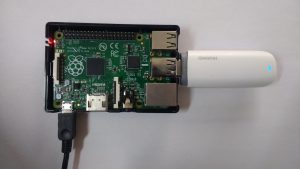
If using a different modem, check first if it’s supported with oFono. Here is a list of supported hardware.
Kernel configuration
In order to support 3G USB modems, the following kernel configuration options
need to be enabled :
CONFIG_USB_SERIAL=y
CONFIG_USB_SERIAL_GENERIC=y
CONFIG_USB_SERIAL_WWAN=m
CONFIG_USB_SERIAL_OPTION=m

CONFIG_PPP=m
CONFIG_PPP_MULTILINK=y
CONFIG_PPP_FILTER=y
CONFIG_PPP_ASYNC=m
CONFIG_PPP_SYNC_TTY=m
If those options are used, you should see the following in dmesg:
usbserial: USB Serial support registered for GSM modem (1-port)
 GSM modem (1-port) converter detected
usb 1-1.3: GSM modem (1-port) converter now attached to ttyUSB0
option 1-1.3:1.1: GSM modem (1-port) converter detected
usb 1-1.3: GSM modem (1-port) converter now attached to ttyUSB1
option 1-1.3:1.2: GSM modem (1-port) converter detected
usb 1-1.3: GSM modem (1-port) converter now attached to ttyUSB2
Yocto recipes
To support oFono, the image recipe should include the following packages:
IMAGE_INSTALL += "ofono ofono-tests"
To allow ofono integration with network manager connman, the following packages can be added:
IMAGE_INSTALL += "connman connman-client"
Connman shall be then enabled with 3g support:
PACKAGECONFIG_append_pn-connman = " 3g"
Ofono setup
oFono provides a mobile telephony (GSM/UMTS) application framework that includes consistent, minimal, and easy to use complete APIs. It offers a high-level D-Bus API for use and integrate with other applications.
The advantage of using oFono is that very simple to configure and you will not have to deal with any kind of AT commands.
Plug in your 3G modem and check if recognized by oFono:
root@raspberrypi:/usr/lib/ofono/test# ./list-modems

[ /huawei_0 ]
    Type = hardware
    Powered = 1
    Serial = 860051019861709
    Manufacturer = huawei
    Model = E173
    Emergency = 0
    Online = 0
    Features = sim
    Lockdown = 0
    Revision = 11.126.16.04.00
    Interfaces = org.ofono.SimManager
    [ org.ofono.SimManager ]
        BarredDialing = 0
        Present = 1
        CardIdentifier = 89492019165001742330
        LockedPins = pin
        PinRequired = pin
        FixedDialing = 0
        PreferredLanguages = de en
        Retries = [puk2 = 10] [pin2 = 3] [pin = 3] [puk = 10]
        SubscriberNumbers =
Enable modem:
root@raspberrypi:/usr/lib/ofono/test# ./enable-modem
Connecting modem /huawei_0...
If SIM card is protected with pin, enter the code:
root@raspberrypi:/usr/lib/ofono/test# ./enter-pin pin 1234
Enter Pin for modem /huawei_0...
Depending on the country and Network provider, APN setting is to be configured:
root@raspberrypi:/usr/lib/ofono/test# ./create-internet-context internet.eplus.de
Found context /huawei_0/context1
Setting APN to internet.eplus.de
Now the modem can be set online and activated:
root@raspberrypi:/usr/lib/ofono/test# ./online-modem

root@raspberrypi:/usr/lib/ofono/test#./activate-context
Here is an example script of modem initialization:
#!/bin/sh

#set -x

MODEM="/huawei_0"
PIN="1234"
APN="internet.eplus.de"
OFONO_DIR=/usr/lib/ofono/test

export PATH=$OFONO_DIR:$PATH

enable-modem $MODEM

if [ -n "$PIN" ]; then
    enter-pin $MODEM pin $PIN
fi

create-internet-context $APN
online-modem  $MODEM
activate-context
That’s it! the modem is up and the broadband connection is enabled:
root@raspberrypi:/usr/lib/ofono/test# ifconfig
eth0      Link encap:Ethernet  HWaddr B8:27:EB:C4:02:82
          UP BROADCAST MULTICAST  MTU:1500  Metric:1
          RX packets:0 errors:0 dropped:0 overruns:0 frame:0
          TX packets:0 errors:0 dropped:0 overruns:0 carrier:0
          collisions:0 txqueuelen:1000
          RX bytes:0 (0.0 B)  TX bytes:0 (0.0 B)

lo        Link encap:Local Loopback
          inet addr:127.0.0.1  Mask:255.0.0.0
          inet6 addr: ::1%694092/128 Scope:Host
          UP LOOPBACK RUNNING  MTU:65536  Metric:1
          RX packets:1120 errors:0 dropped:0 overruns:0 frame:0
          TX packets:1120 errors:0 dropped:0 overruns:0 carrier:0
          collisions:0 txqueuelen:1
          RX bytes:81280 (79.3 KiB)  TX bytes:81280 (79.3 KiB)

ppp0      Link encap:UNSPEC  HWaddr 00-00-00-00-00-00-00-00-00-00-00-00-00-00-00-00
          inet addr:10.148.173.91  P-t-P:10.148.173.91  Mask:255.255.255.255
          UP POINTOPOINT RUNNING NOARP MULTICAST  MTU:1500  Metric:1
          RX packets:17 errors:0 dropped:0 overruns:0 frame:0
          TX packets:18 errors:0 dropped:0 overruns:0 carrier:0
          collisions:0 txqueuelen:500
          RX bytes:1762 (1.7 KiB)  TX bytes:1207 (1.1 KiB)
The cellular connection is also available in connman:
root@raspberrypi:/usr/lib/ofono/test# connmanctl technologies
/net/connman/technology/cellular
  Name = Cellular
  Type = cellular
  Powered = True
  Connected = True
  Tethering = False
/net/connman/technology/ethernet
  Name = Wired
  Type = ethernet
  Powered = True
  Connected = False
  Tethering = False
we can for example enable cellular connection tethering over wifi:
root@raspberrypi:# sysctl -w net.ipv4.ip_forward=1

root@raspberrypi:# connmanctl tether wifi on EmbexuSpot 123456789
If having problem to connect with cellular network, you can use list-modem to check the connection status:
root@raspberrypi:/usr/lib/ofono/test# ./list-modems
[ /huawei_1 ]
    Type = hardware
    Model = E173
    Powered = 1
    Interfaces = org.ofono.Phonebook org.ofono.ConnectionManager org.ofono.CellBroadcast org.ofono.NetworkRegistration org.ofono.SupplementaryServices org.ofono.CallBarring org.ofono.CallSettings org.ofono.CallF
    Revision = 11.126.16.04.00
    Serial = 860051019861709
    Online = 1
    Features = gprs cbs net ussd sms rat sim
    Emergency = 0
    Manufacturer = huawei
    Lockdown = 0
    [ org.ofono.Phonebook ]
    [ org.ofono.ConnectionManager ]
        Attached = 1
        Suspended = 0
        Powered = 1
        Bearer = umts
        RoamingAllowed = 0
    [ org.ofono.CellBroadcast ]
        Topics =
        Powered = 0
    [ org.ofono.NetworkRegistration ]
        LocationAreaCode = 51906
        MobileCountryCode = 262
        CellId = 33184422
        Mode = auto
        Technology = umts
        Status = registered
        MobileNetworkCode = 03
        Name = Blau
        Strength = 41
    [ org.ofono.SupplementaryServices ]
        State = idle
    [ org.ofono.CallBarring ]
        VoiceOutgoing = disabled
        VoiceIncoming = disabled
    [ org.ofono.CallSettings ]
        VoiceCallWaiting = disabled
        HideCallerId = default
        ConnectedLineRestriction = unknown
        CallingNamePresentation = unknown
        CalledLinePresentation = disabled
        ConnectedLinePresentation = unknown
        CallingLineRestriction = off
        CallingLinePresentation = enabled
    [ org.ofono.CallForwarding ]
        VoiceNoReply =
        VoiceNotReachable = +491793000400
        VoiceUnconditional =
        ForwardingFlagOnSim = 0
        VoiceNoReplyTimeout = 20
        VoiceBusy = +491793000400
    [ org.ofono.MessageWaiting ]
        VoicemailMessageCount = 0
        VoicemailWaiting = 0
        VoicemailMailboxNumber = +491779911
    [ org.ofono.SmartMessaging ]
    [ org.ofono.PushNotification ]
    [ org.ofono.MessageManager ]
        Alphabet = default
        ServiceCenterAddress = +491770610000
        UseDeliveryReports = 0
        Bearer = cs-preferred
    [ org.ofono.RadioSettings ]
        GsmBand = any
        TechnologyPreference = any
        UmtsBand = any
    [ org.ofono.AudioSettings ]
        Active = 0
    [ org.ofono.VoiceCallManager ]
        EmergencyNumbers = 08 000 999 110 112 911 118 119
    [ org.ofono.AllowedAccessPoints ]
    [ org.ofono.SimManager ]
        PreferredLanguages = de en fr
        SubscriberIdentity = 262032735704422
        FixedDialing = 0
        MobileNetworkCode = 03
        MobileCountryCode = 262
        LockedPins = pin
        CardIdentifier = 894921002875759225
        BarredDialing = 0
        SubscriberNumbers =
        PinRequired = none
        Present = 1
        Retries = [pin2 = 3] [puk2 = 10] [puk = 10] [pin = 3]